Reporting
SLICE-FI has a generic reporting mechanism which allows you to create specific targeted reports. The report topics available for you to create depend on your permissions and the business unit
How to ...
FI SLICE portal provides a rich set of functions to create and manage the reports you use both regularly and infrequently. Using the potal you are able to create, print, save and share reports.
... create a report
To create a report
-
Using your web browser, login to the FI SLICE portal.
-
From the reporting page, click on the name of the report you wish to run.

SLICE will open a new browser page displaying the range of report options.
-
In the report definition page, select all the elements of the report you specifically wish reported.
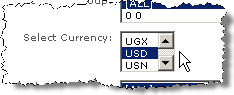
For instance, you may want the report to focus specifically on USD:
Tip
when there are many options in a list, typing the first letter of the option you want will quickly jump to the group of options beginning with that letter. So, typing "u" for USD will move the selection to the first option beginning with the letter u. In this case you'll get UAH . Use the arrow keys to scroll down to the option you want.
Tip
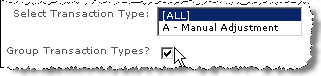
when available, selecting a Group checkbox will group the report results together for each option in that field. The effect is best when the [ALL] option is selection.
Remember
ensure that you have selected the output format you need: - HTML for a screen report - File to save to disk in CSV format to import into Excel
-
Click on the Run Report button.
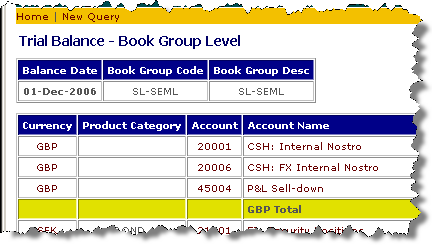
The report will be generated and displayed in a new browser page:
... save a report
To save a report
-
Check that the options you have selected for your report are exactly as you want them.
(You may wish to run a test report to make sure it returns the data you expect).
-
Click on the Save as new search text in the top right hand corner of the report definition box.
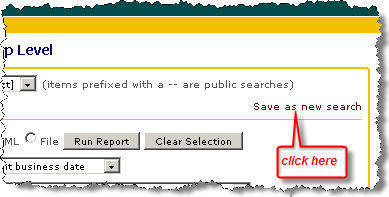
-
In the Saved Searches dialog, enter a search name.
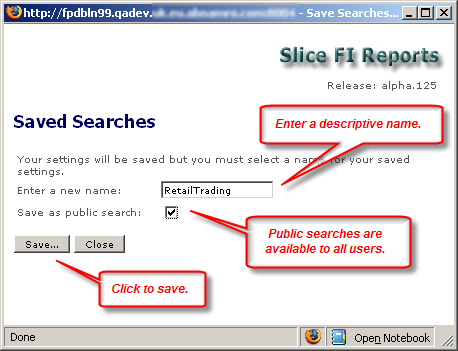
The dialog will notify you that your search has been successfully saved.
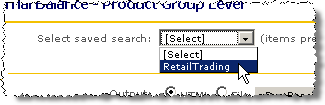
... share a report
To share a report
-
Follow the steps for saving a report.
-
In the Saved Searches dialog ensure that you tick the Save as public search check box.
... print a report
There is no dedicated Print button for reports. Instead you must use the print functionality provided by the browser.
To print a report
-
From your browser menu, select File > Print
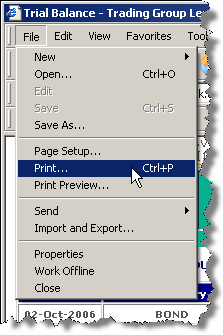
-
To print in landscape, in the print dialog click on the Preferences button, then select Landscape.
... export a report to excel
To export a report to MS Excel
-
Follow the steps for creating a report, but make sure you select the File radio button.

-
Click on the Run Report button.
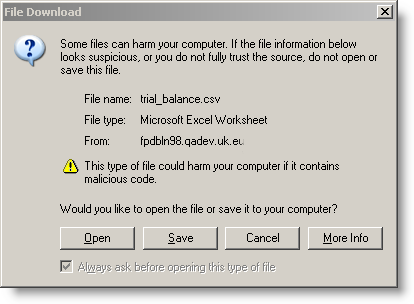
The report will be generated and the File Download dialog will
-
Click on the Open button to launch the report inside Excel.
Attention
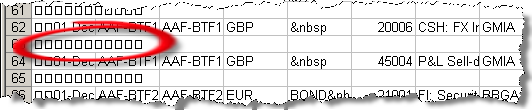
Currently the report opens with non-ascii characters in every alternate line.