Funding Rates
Cash used (or generated) by the books responsible for trades incurs a borrowing/lending charge from the central funding pool. The funding rate process calculates the cash funding requirement for each book and applies the appropriate funding rate to create the charge.
The Funding Rates options on the FI SLICE Desktop application enables you to view historical funding rates and update these rates for each currency.
How to find current or historical rates
To view historical funding rates:
-
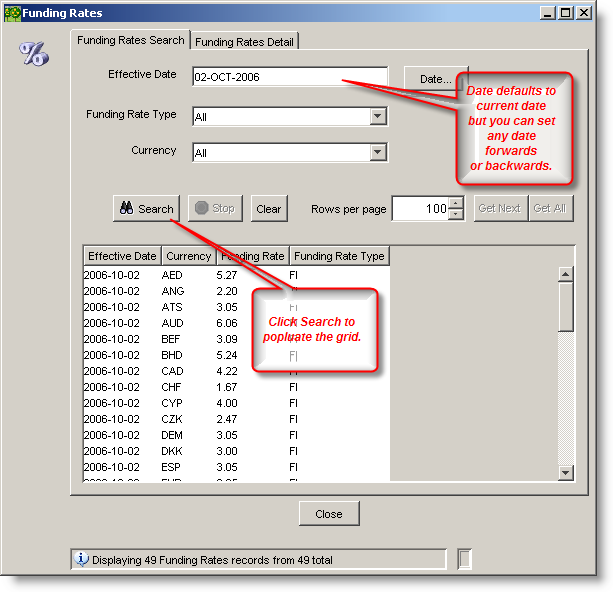
From the FI SLICE desktop, open the Funding Rates screen from the Funding Rates menu.

-
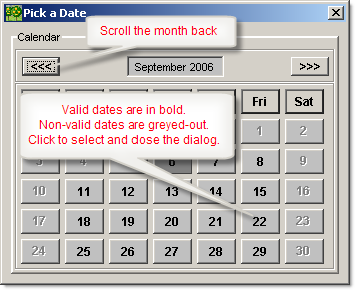
In the Effective Date text box, enter the date you wish to view in the form DD-MMM-YYYY (e.g. 02-OCT-2006), or click on the Date button to open the date dialog.
-
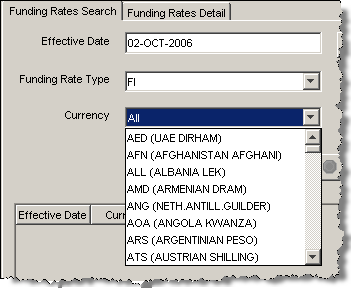
Select the the Funding Rate Type and, if required, the specific currency you wish to view.
Note
To view all historical rates for one currency only, clear the Effective Date field and select the currency in the Currency field. This will list funding rates for the selected currency for all available dates.
-
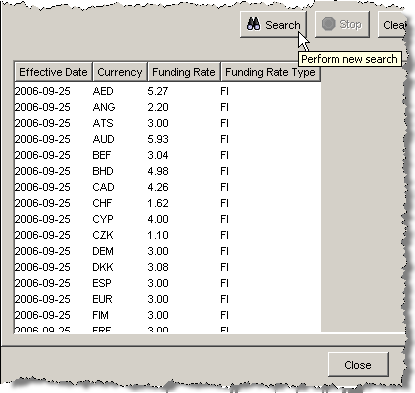
Click on the Search button.
How to update the funding rates
Before you start you should record the location of the new funding rates forwarded from the Treasurer at COB (?). These are generally presented in the form of an Excel spreadsheet listing the lastest rates.
To update the Funding Rates for FI SLICE:
-
From the FI SLICE desktop, open the Funding Rates screen from the Funding Rates menu.
-
Click on the Funding Rates Details tab, and in the Effective Date text box, enter the date you wish to view in the form DD-MMM-YYYY (e.g. 02-OCT-2006), or click on the Date button to open the date dialog.
Warning
You will only be able to update the funding rate for the current or previous business day.
-
Set the the Funding Rate Type.
It will default to the type for which you have permissions to update.
-
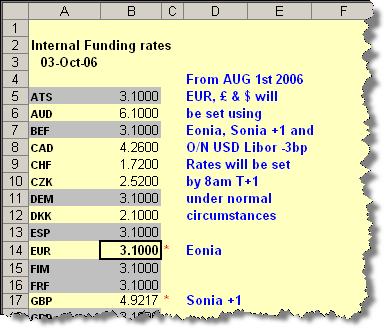
Open the latest Funding Rates spreadsheet, select the currencies you wish to update, and copy them into the clipboard (Ctrl-C).
-
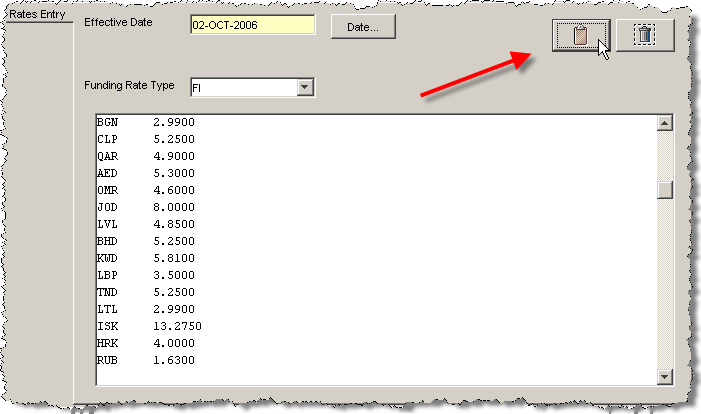
Return to the FI SLICE Funding Rates screen click on the clipboard icon to paste the new rates into the details area.
Note
You can also use the standard windows Ctrl-c, Ctl-v method. However, remember to use the Delete icon to clear the existing text before pasting.

-
Click on the Save button to update the Funding Rates.

SLICE will validate all the input data and provide a range of warnings.
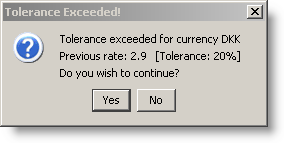
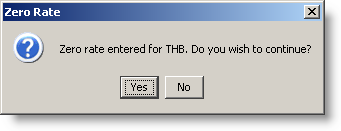
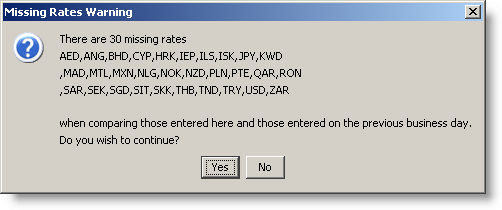
You will then be prompted to save.
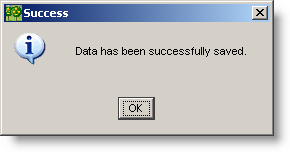
-
Click OK to save.
Funding rates screen reference
The Funding Rates window has 2 panels:
- The Search panel allows historical searches for specific funding rates
- The Details panel enables the current funding rates to be updated
Funding rates search screen
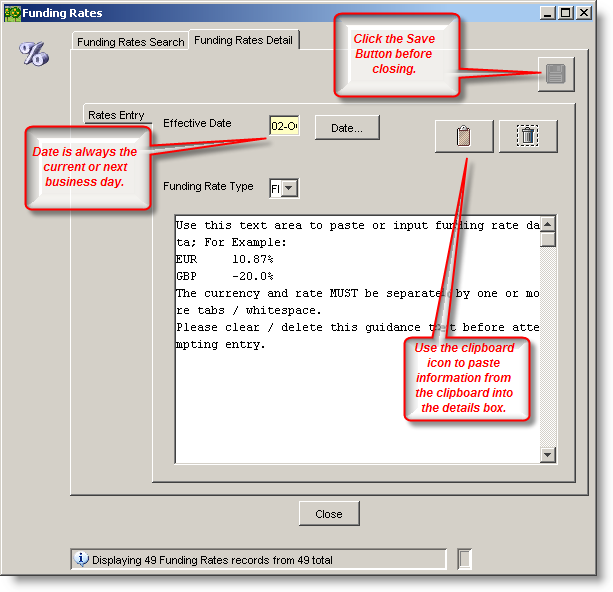
Funding rates detail screen
Funding Rates are updated in FI SLICE through the Details panel via a simple cut-and-paste mechanism.