Getting Started
General help
The first place to look for help if you get stuck is here in the FI SLICE User Guide. If you are not able to find any information that can help you, try these channels:
| Topic | Help Source |
|---|---|
| Access & Permissions | If you do not have a SLICE login account, or need a different set of permissions to carry out your work, you should first speak to your supervisor or manager who will authorise and arrange the appropriate access levels. |
| Data issues | Application Support ??? |
| Hardware issues | As always with hardware and general IT and infrastructure issues, call IT support on x 88888. |
How to log in to the FI SLICE desktop
To login to the MADJ desktop you will need a password which your supervisor or manager will have provided for you. The login name you will use will be your ABC GB-id.
The SLICE-FI Desktop application (MADJ) should be installed on your PC.
To login to the SLICE-FI Desktop:
-
Double-click on the SLICE-FI Desktop Icon on your desktop.

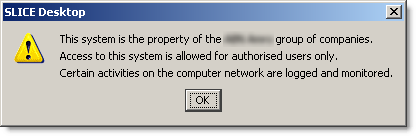
This will start the application and you will be presented with a access dialog.
-
Click OK to accept the Access agreement.
The application will now present the login dialog.
-
Enter your login name and password and click OK.
Your region should default to the correct region.
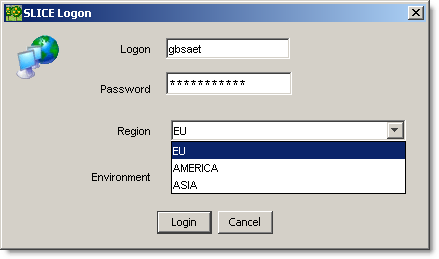
The application will load your environment and your profile. Your profile will determine the functions and data you have access to.

How to log in to the FI SLICE web portal
To login to the SLICE Web Portal you will need a password which your supervisor or manager will have provided for you. The login name you will use will be your ABC GB-id.
To login to the SLICE-FI Web Portal:
- Open your browser and type the following address into the address bar: http://slice.uk.abn.com/
This will launch the website you will be presented with the login page.
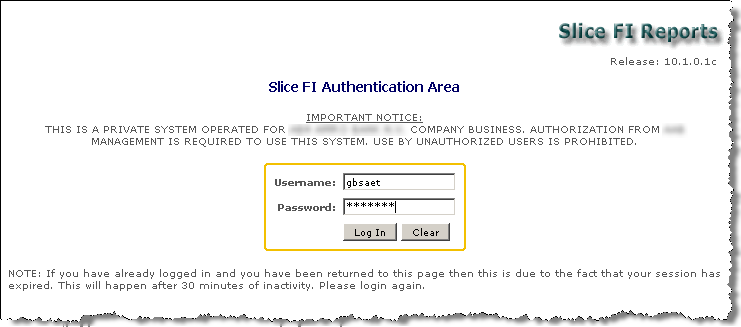
- Enter your login details and click OK.
THe browser will load the FI SLICE Reports home page from which you can run any reports for which you have the correct permissions.
FI SLICE access and permissions
Access controls for SLICE-FI are necessarily complex because of the number of users, the range of functions and the nature of the data being managed. Permissions are based on group roles which are assigned read, write or authorise access to each discrete application function (component).
When you are given a login to SLICE, your Id is assigned to a group, or role. This ensures that you have immediately have the correct permissions to carry out your work because the access for each of these roles has already been defined.
The diagram below illustrates the way access is organised and permissions are assigned:
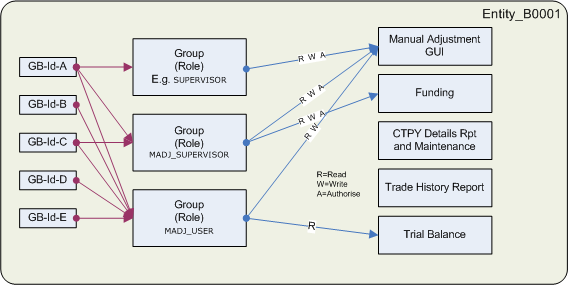
FI SLICE task matrix
The SLICE-FI application is made up of two separate applications: the SLICE-FI Desktop (often called MADJ)and the SLICE-FI web portal. The following table shows which application to use to carry out which specific task.
| To - | Use this application |
|---|---|
| - make a Single Manual Adjustment | SLICE-FI Desktop (MADJ). |
| - make Multiple/Bulk Manual Adjustment | SLICE-FI Desktop (MADJ). (You will also need the Excel Spreadsheet template.) |
| - run Historical Funding Rates report | SLICE-FI Desktop (MADJ). |
| - set current Funding Rates | SLICE-FI Desktop (MADJ). |
| - run Trial Balance reports | SLICE-FI Web Portal (for all reporting options) |
| - maintain Static Data | SLICE-FI Web Portal |
| - add, delete, update user accounts | SLICE-FI Desktop |
| - manage group accounts | SLICE-FI Desktop |
| - update your user profile | SLICE-FI Desktop |
| - change your password | SLICE-FI Desktop |
Profile management
The documents in this section descibe how you can manage your own SLICE profile using the SLICE-FI Desktop application (MADJ).
How to edit your profile
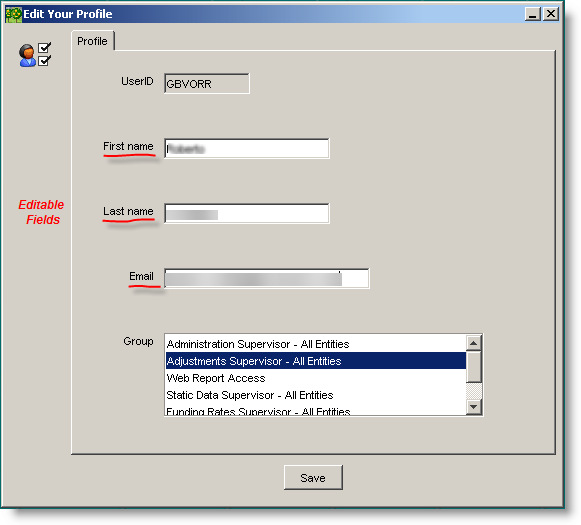
It's possible, though not necessarily wise to change some aspects of your profile, such as your name and email address.
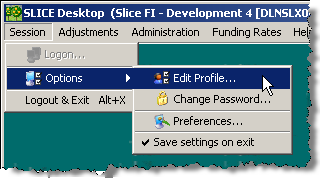
From the menu select Session > Options > Edit Profile . . .
You are not able to change your User Id or Group associations - these are for information only.
How to change your password
To change your Slice-FI Desktop (MADJ) password:
-
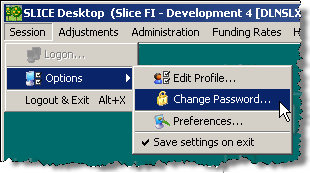
From the menu select Session > Options > Change password . . .
-
In the Password Change dialog, enter your new password in both text boxes and click OK.
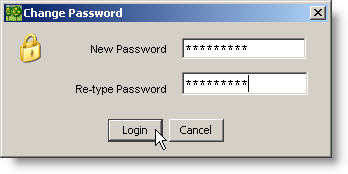
You new password will be immediately effective.
Setting your preferences
You can set and save session preferences using the Desktop Configuration dialog.
From the menu select Session > Options > Preferences . . .
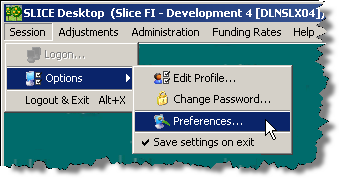
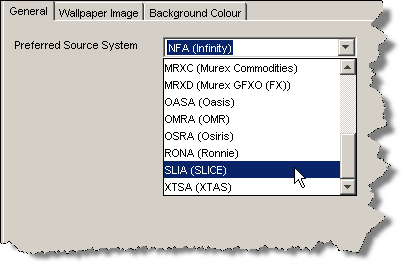
Setting the default preferred source system.
Set the default Prefered Source from the drop down menu on the General tab. This will automatically set the selected system as the preferred source when using the Manaual Adjustment screen.
Other settings
You are also able to change the default wallpaper image and background colour from the appropriate tab: